
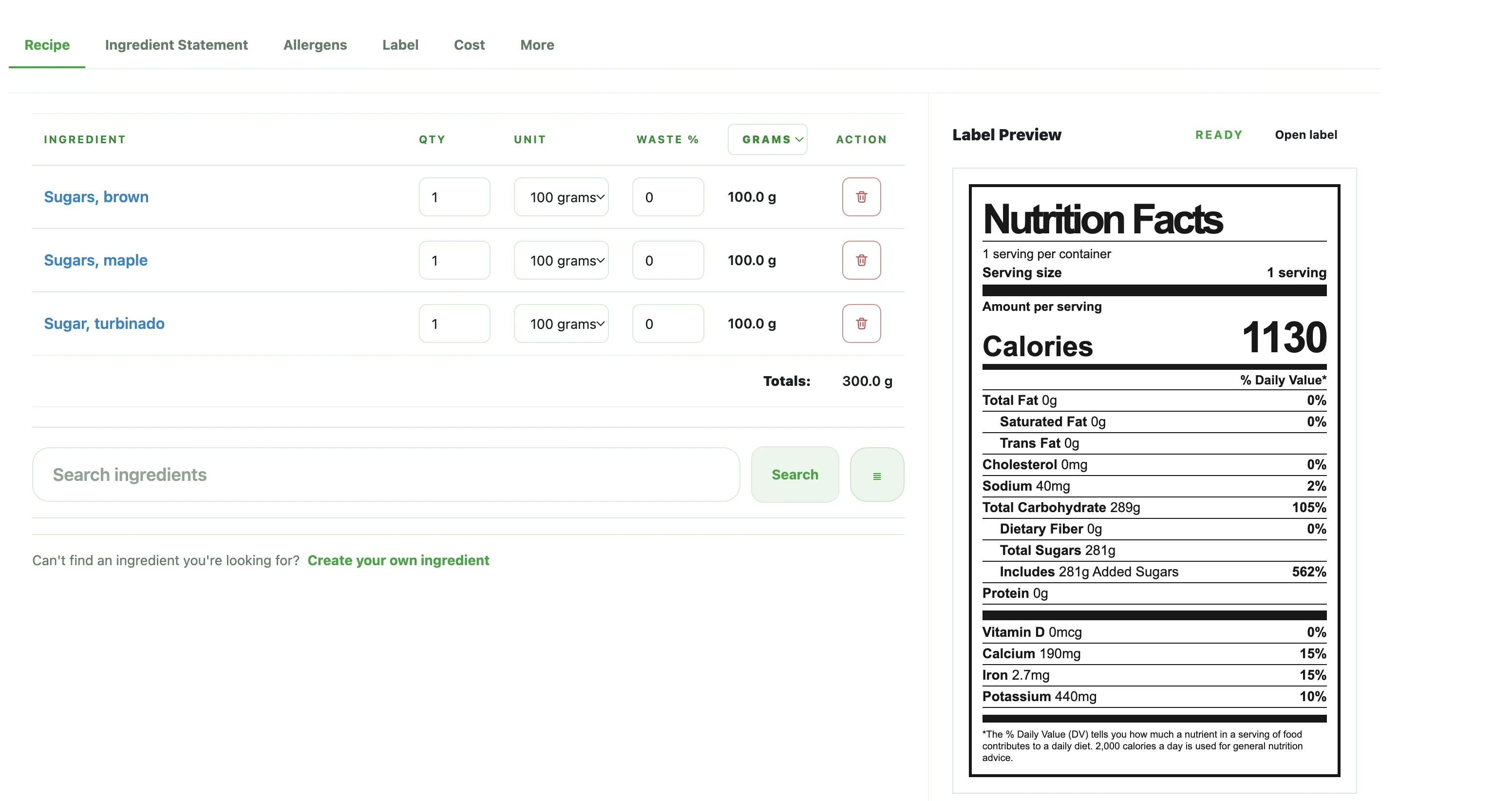
Key takeaway
A professional Nutrition Facts label workflow starts with stable recipe and serving data, then moves through review of the panel and supporting statements before export.
Start with complete recipe and serving information
If you are learning how to make a nutrition label, the process starts with the recipe, batch quantity, and serving plan. Before you format anything, make sure you know what ingredients are included, how much the full batch makes, and what a real serving looks like.
For small food brands, the biggest mistake is trying to design the label before the serving and recipe numbers are stable. That usually creates rework later when calories, sugars, sodium, or serving count change.
- List every ingredient with usable quantity data
- Decide the batch yield and expected number of servings
- Set a serving size customers can actually understand
How to create a Nutrition Facts label from recipe data
Once the batch recipe is defined, convert the nutrition values into per-serving numbers. This is the point where you review calories, total fat, added sugars, protein, sodium, and other nutrients that will feed the label.
If you already have serving-level values from a lab or trusted dataset, you can bring them straight into the label workflow. If not, you should calculate them from your recipe first.
- Review calories and major macronutrients first
- Double-check serving count because it affects every value
- Confirm optional nutrients before final label review
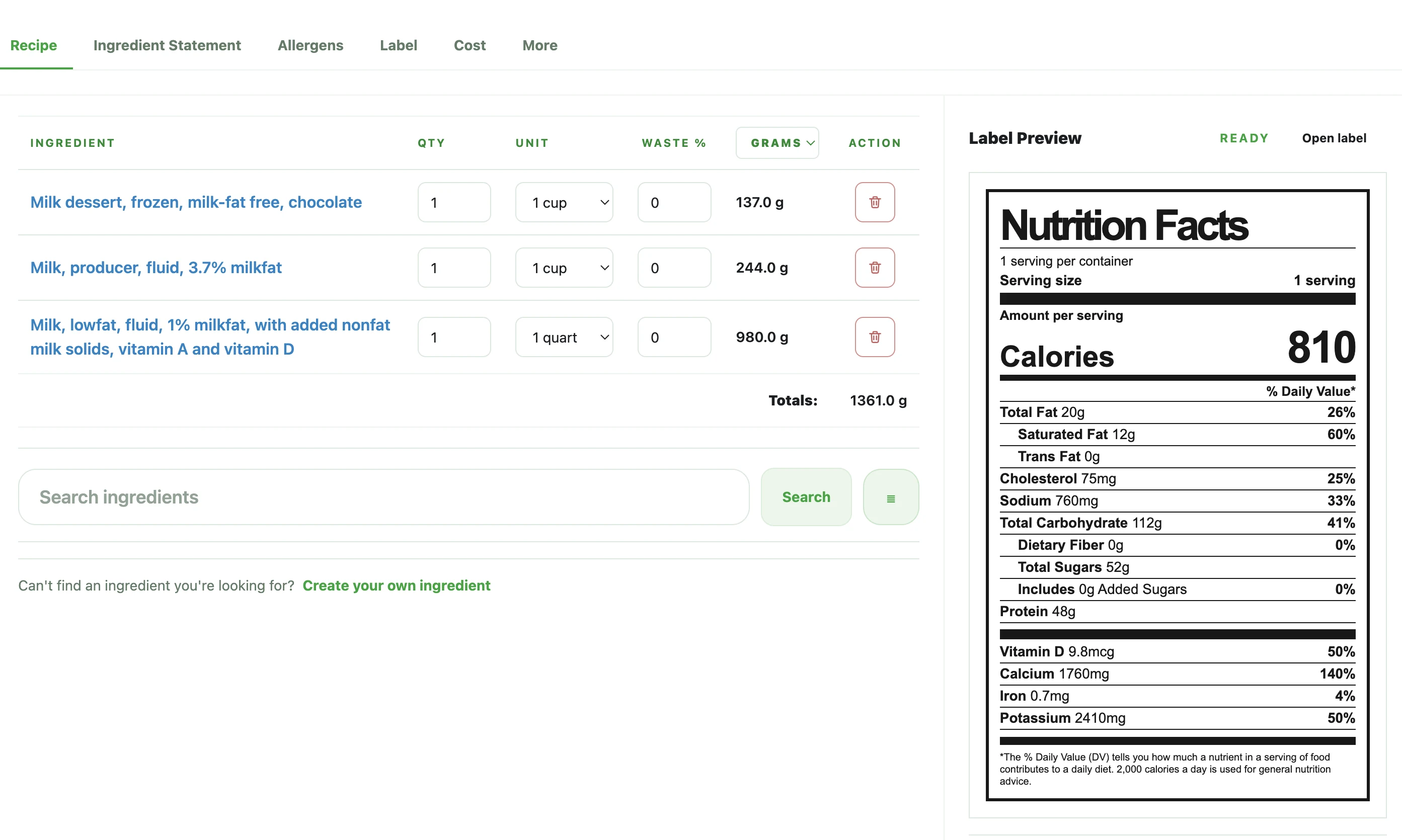
Context view
This overview helps explain the broader workflow before the article moves into recipe inputs, serving values, and label review.
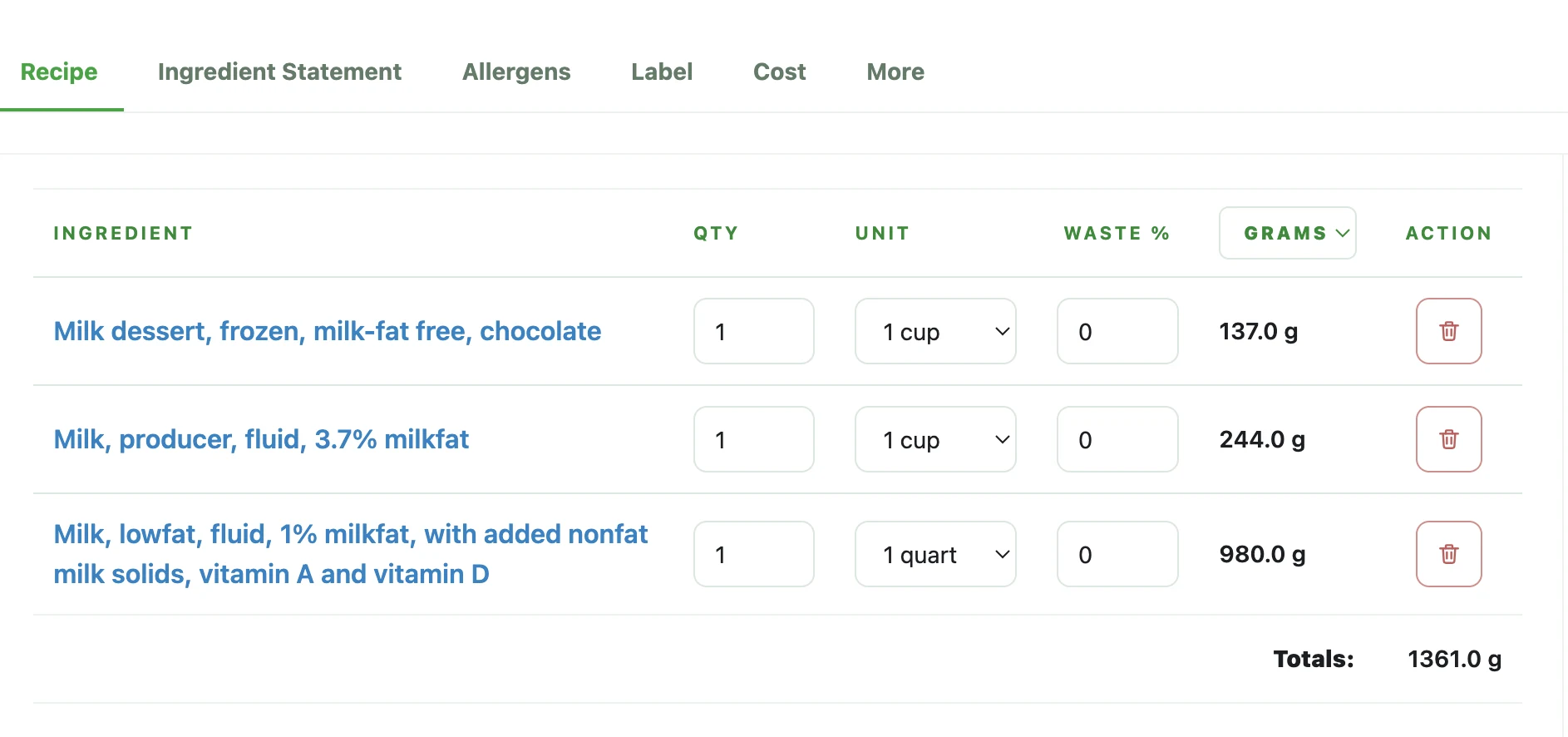
Focused crop: recipe inputs
This crop narrows the reader's attention to the recipe-side operational work: ingredient rows, quantity inputs, and totals that shape the final label.
Focused crop: label preview
This crop focuses on the panel side so the article can talk about review readiness, serving logic, and output quality without repeating the full-screen composition.
Choose the label format and review the supporting statements
After the nutrition values are stable, choose the Nutrition Facts format that matches your packaging plan. Then review the details around the panel, such as ingredient statements, allergen statements, barcode placement, and any optional business information.
This review matters because packaging work is rarely just the nutrition box. Teams usually need the label panel and the surrounding support text ready at the same time.
- Pick the format that fits the package and market
- Review ingredient and allergen statements alongside the label
- Check display choices before exporting final files
Preview, revise, and prepare the export-ready version
Before exporting, inspect the full preview carefully. Look for serving issues, inconsistent ingredient wording, missing statements, or values that no longer match the latest recipe version.
The goal is not just to generate a label image. The goal is to create a label preview that your team can confidently review before handing it to design, packaging, or print partners.
- Recheck serving size and servings per container
- Compare the preview against the latest recipe version
- Export only after the review details are stable
Common mistakes
- • Designing the panel before the serving size and batch yield are stable
- • Reviewing calories and macros without checking ingredient or allergen statements
- • Treating a finished-looking preview as proof that the packaging details are complete
Review checklist
- • Recipe ingredients match the current production version
- • Serving size and servings per container are final enough for review
- • Per-serving values have been checked before the label format is chosen
- • Supporting statements are reviewed alongside the panel before export
FAQ
Do I need recipe data before making a nutrition label?
Yes. You need either recipe-based nutrition data or trusted finalized serving values before you can build a useful label.
How do you make a nutrition facts label from a recipe?
Start with the full recipe and serving plan, calculate per-serving nutrition, then review the Nutrition Facts label preview and the surrounding packaging statements before export.
Can I make the label before the recipe is final?
You can draft the layout, but the label will likely need revision if the recipe, serving size, or ingredient list changes.
Is the label preview the same as regulatory approval?
No. A preview helps you review format and content, but you are still responsible for final nutrition accuracy and packaging compliance.
Related guides
How to Calculate Serving Size for Nutrition Labels
A practical FDA serving-size guide for turning a finished product, its category, and its real measurements into a review-ready label serving.
How to Choose a Nutrition Facts Label Format
A practical guide for comparing Nutrition Facts label formats before a food label moves into packaging review.
How to Calculate Nutrition From a Recipe
A practical guide for turning recipe ingredients, batch yield, and serving logic into per-serving nutrition values that are ready for label review.
FDA Nutrition Label Requirements: What Small Food Brands Should Review
A practical review guide for understanding FDA-style Nutrition Facts label structure, nutrition label requirements, and common mistakes.
How to Write an Ingredient Statement
A practical guide for turning the active recipe into a review-ready ingredient statement that stays aligned with the label and surrounding packaging text.
Canadian Nutrition Facts Label Guide
A practical guide for reviewing Canadian Nutrition Facts table work alongside ingredient, allergen, and packaging statement details.